TAM
Building the everyday tools of a project manager
- Live time tracking
- Google Calendar sync
- List, board and Gantt views
- Realtime updates
Overview
TAM is where teams plan, track and finish their work.
Work lives in workspaces, spaces, folders, lists and tasks, and every list can be seen as a list, a board, a calendar or a Gantt chart. I was one of three software engineers, alongside a designer, a QA tester and a product owner. I worked on a React, TypeScript and RTK Query codebase with realtime updates over Socket.IO, and later shipped to the NestJS services too, so a feature could go from the database to the screen in one pair of pull requests.
- Frontend pull requests
- 160+
- Backend pull requests
- 40+
- Companies running their projects on it
- 3
- Rating on G2
- 4.5
Time tracking
A timer that follows you across the whole app.
Problem
Hours were written down from memory at the end of the week, so what a task really cost was a guess.
I built time tracking from scratch so time could be logged while the work happens. One field in the top bar starts a timer or takes a duration typed in your own words, and the record of your day stays with you wherever you go.
One field, two ways to use it
Leave the field empty and the button beside it starts a timer. Type into it and the same field becomes a manual entry, with a task, a date, a start and end time, and a note. There is one composer to learn, not two.
It reads time the way people write it
"3h 20m" is understood as it stands. A bare number is offered back as hours, and anything loose is normalised before you commit it: "90m" and "1.5" both become 1h 30m. Taking the suggestion also moves the start time back to match, because the entry that gets saved is a real span of the day, not a loose number of minutes.
Decision
The running timer belongs to the server, not the tab
A running timer is an entry with a start and no end, owned by the server. The top bar asks for it on load and hears about it over the socket, so a reload, a second tab or a laptop closed for the night all show the same count. Stop it anywhere and every open window drops the finished entry into today at once.
A past entry is a button
The play control on a row starts a fresh timer on that task, so picking yesterday’s work back up costs one click. Delete removes a row with no confirmation to dismiss, and the day total corrects itself as it goes.
Result
Time now goes in as the work happens, not from memory at the end of the week. A project manager opens a task and reads what it really cost, per person, and the day’s total adds itself up.
4 more screens from the timer
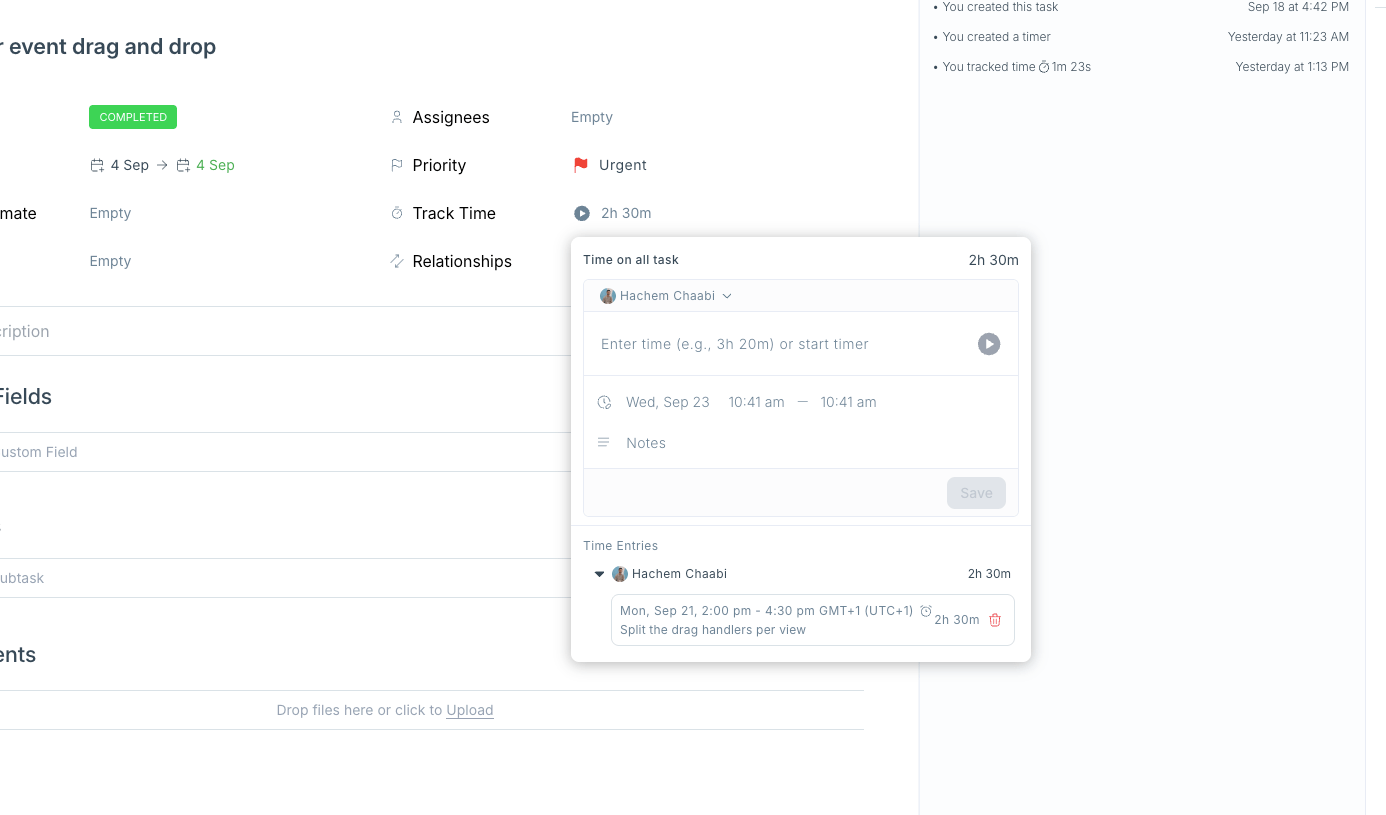
Task totals. A task carries its own tracked total and every entry logged against it, grouped by person.
Suggested range. A suggested duration works backwards from now and moves the start time to match.
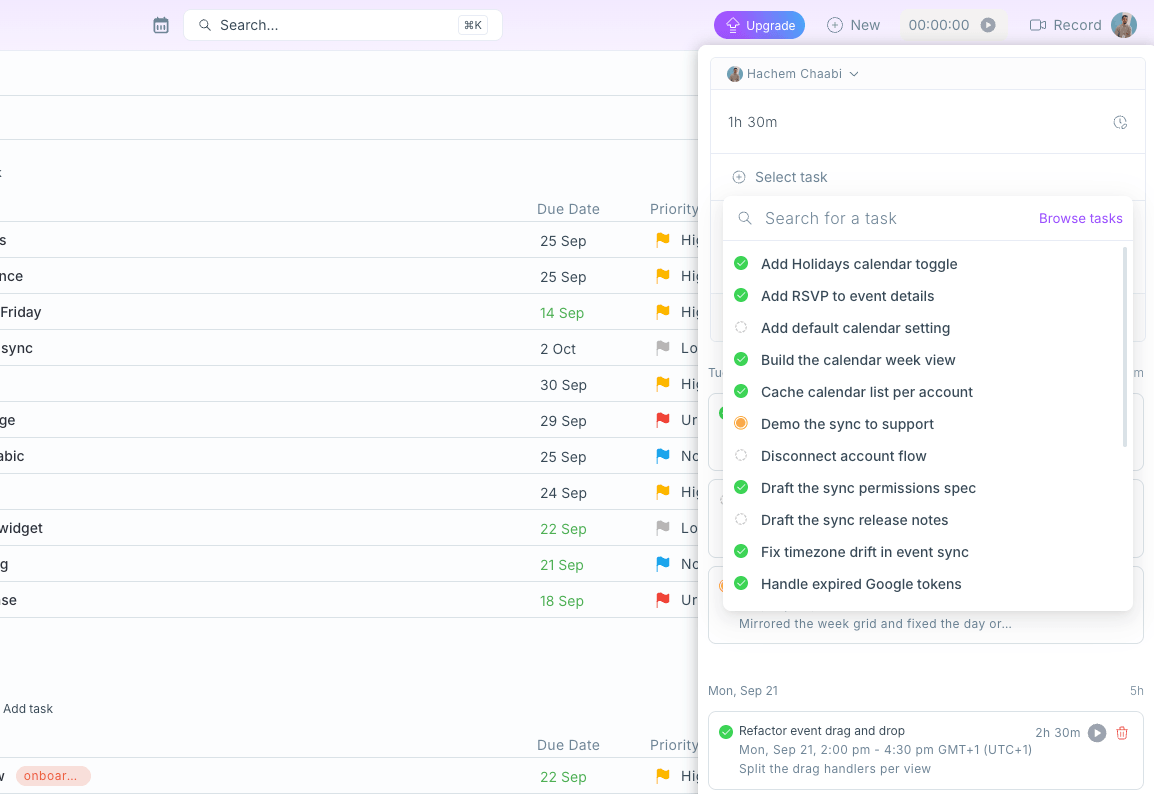
Task picker. The task picker searches the whole workspace, each result marked with its status colour.
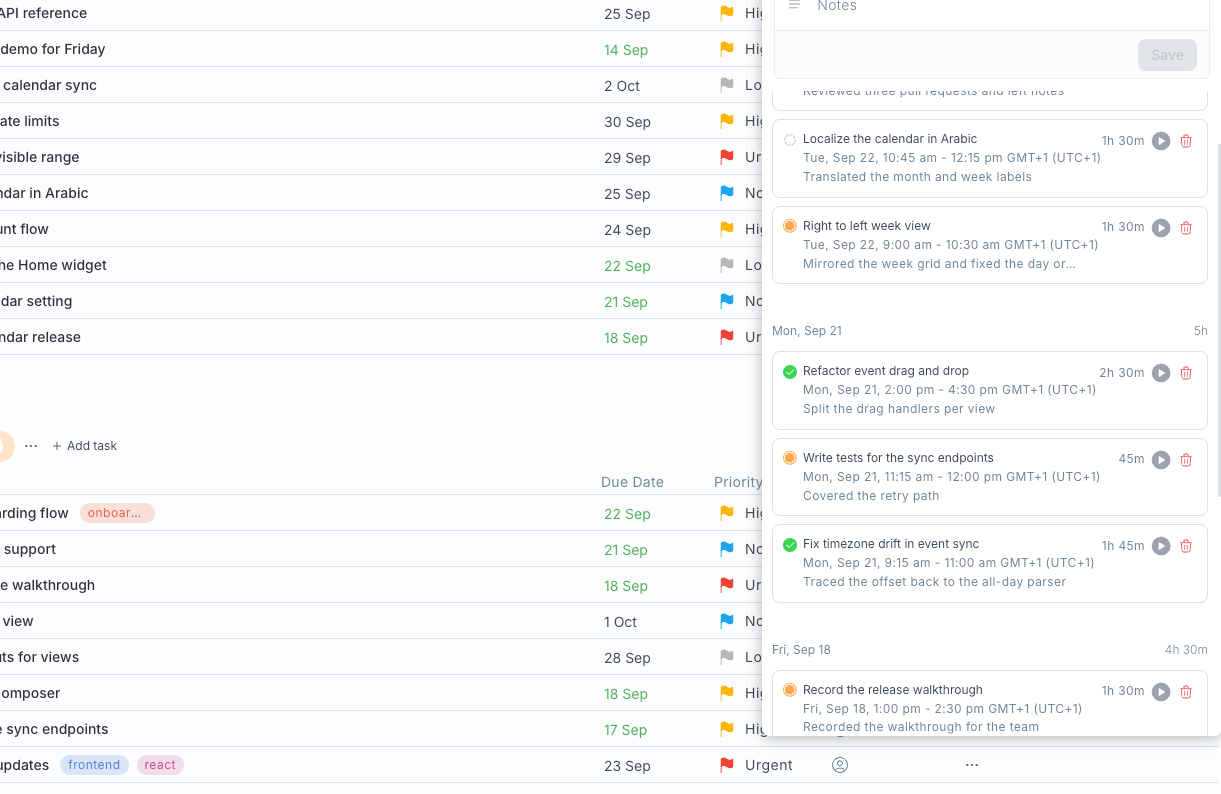
Day groups. Entries are grouped by day with a total each, and older days load as you scroll.
Calendar sync
Your tasks and meetings, in sync.
Problem
Meetings lived in Google Calendar and tasks lived in TAM, so planning a day meant two tabs and guessing what would fit.
On the frontend and the backend, I connected Google Calendar so meetings sit next to tasks on one grid, and a change on either side lands on the other.
Move it by dragging
Drag a block to another day or another hour and it keeps its length; pull its bottom edge to change how long it runs. Tasks move the same way.
An event or a task from any empty slot
Clicking a free slot opens a composer right there. The block fills in as you type the title, and the event is saved to Google Calendar. The same composer has a Task tab: pick a list, a status and a priority, and the task is scheduled where you clicked.
Decision
Optimistic on the screen, strict on the server
A drag moves the block at once and sends the new time to Google in the background; if Google refuses, the block moves back and says why. Tokens never reach the browser. The consent screen hands them to the NestJS service, which stores them against the person who granted them and checks that ownership on every request, so one person’s calendar can never be read through another’s session. One person can link several accounts, and each keeps its own calendars.
Edit anything where it sits
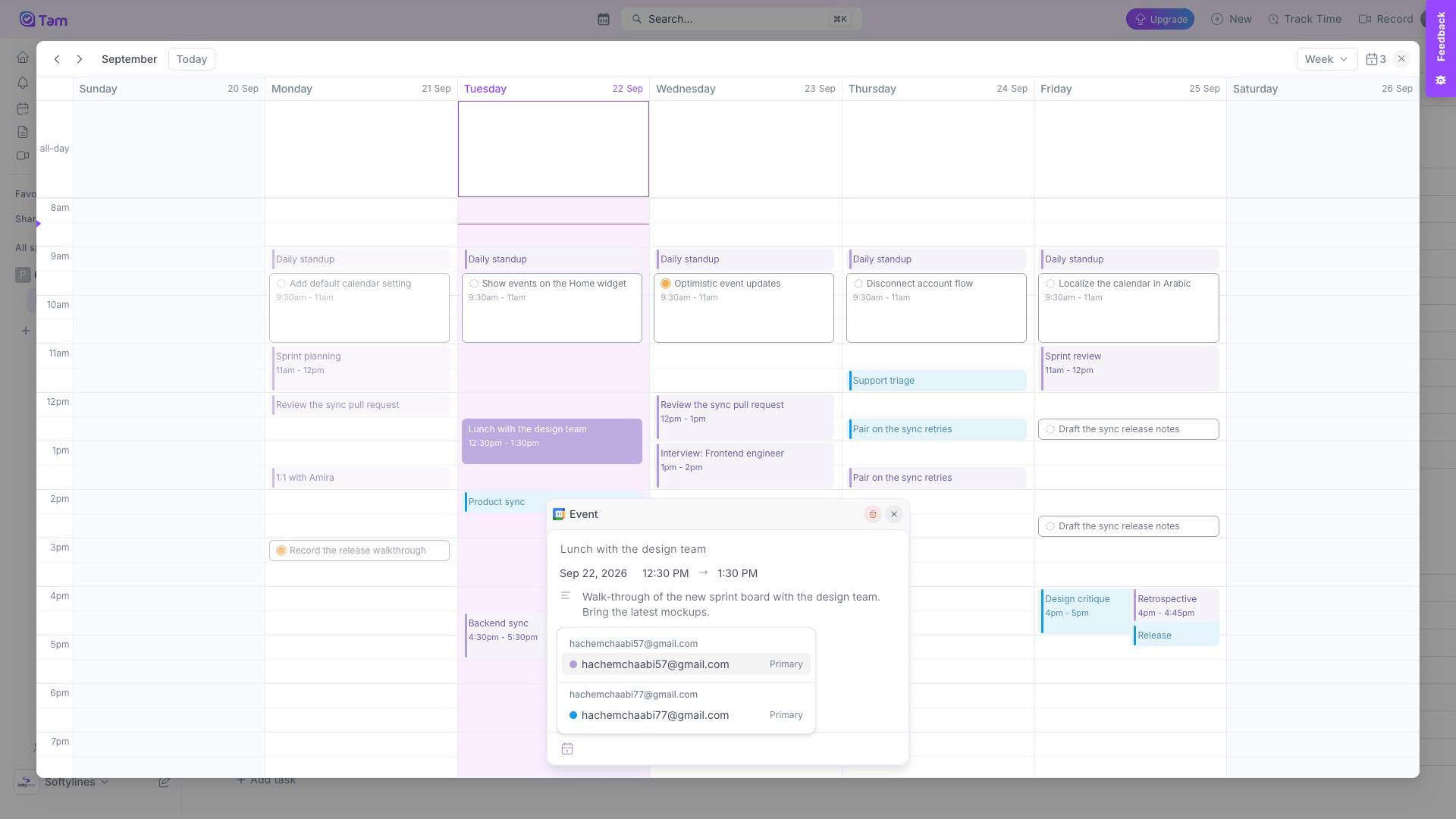
A Google event opens with its title, date, times and description ready to edit, and a calendar picker that moves it to another calendar, or to another connected account. A task opens the same way, without leaving the calendar.
Result
One calendar now holds the whole day. Standups, sprint reviews and client calls sit beside the sprint’s tasks, and a moved meeting moves in both places without anyone typing it twice.
6 more views of the calendar
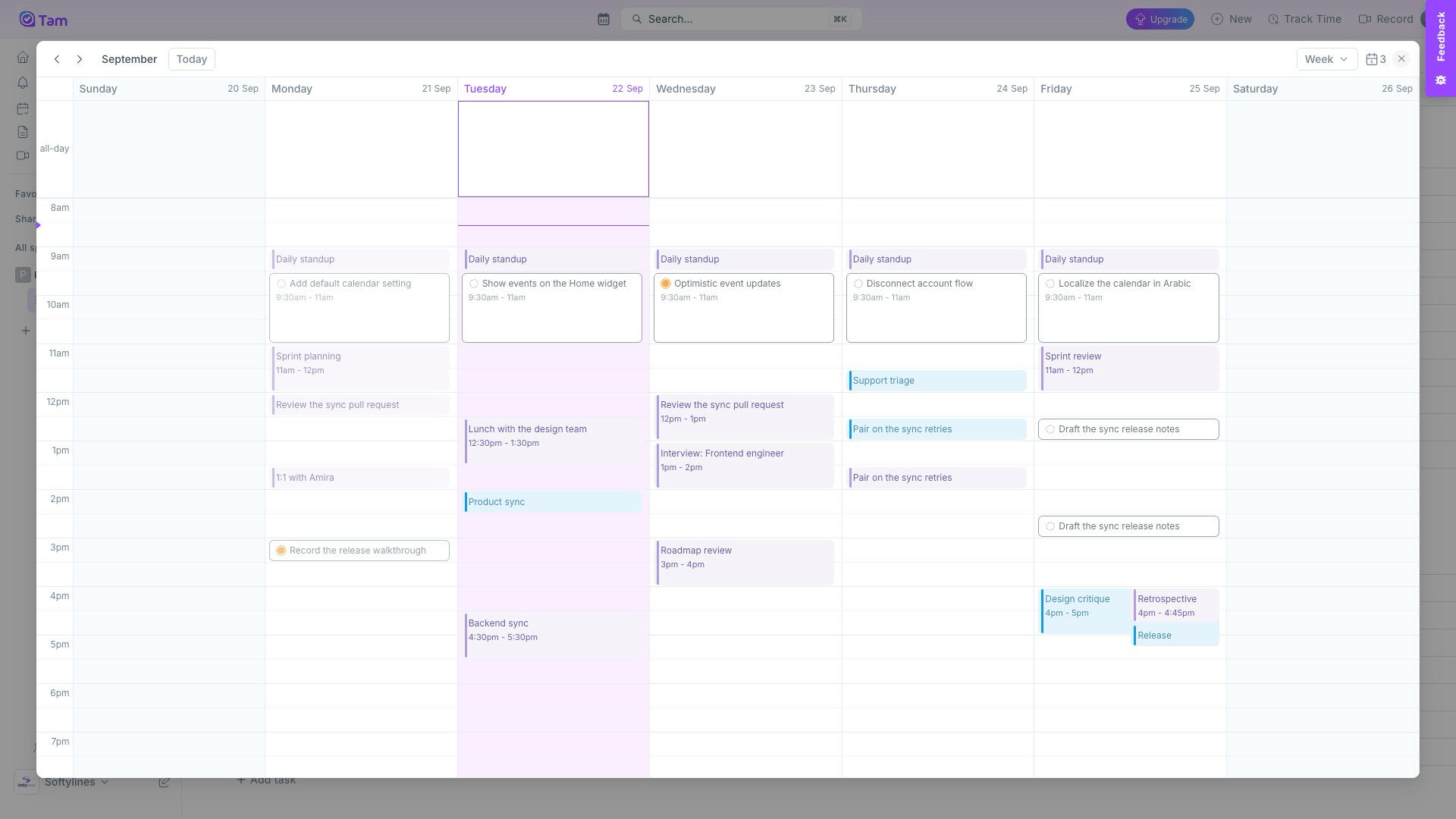
Week view. Google events and TAM tasks share the same week, each task keeping its status.
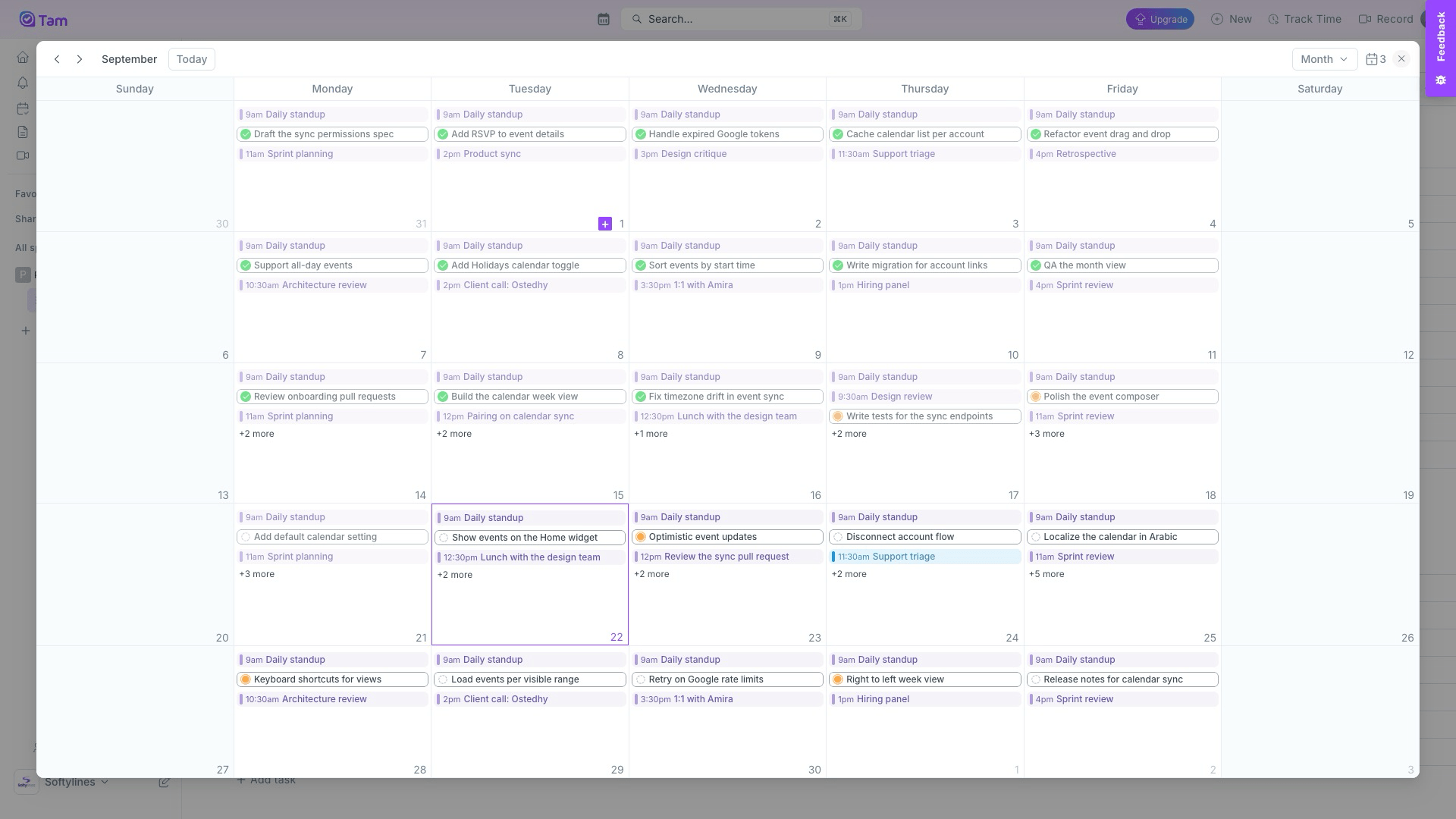
Month view. The month view lays out every standup, meeting and task. Shift M and Shift W switch views.
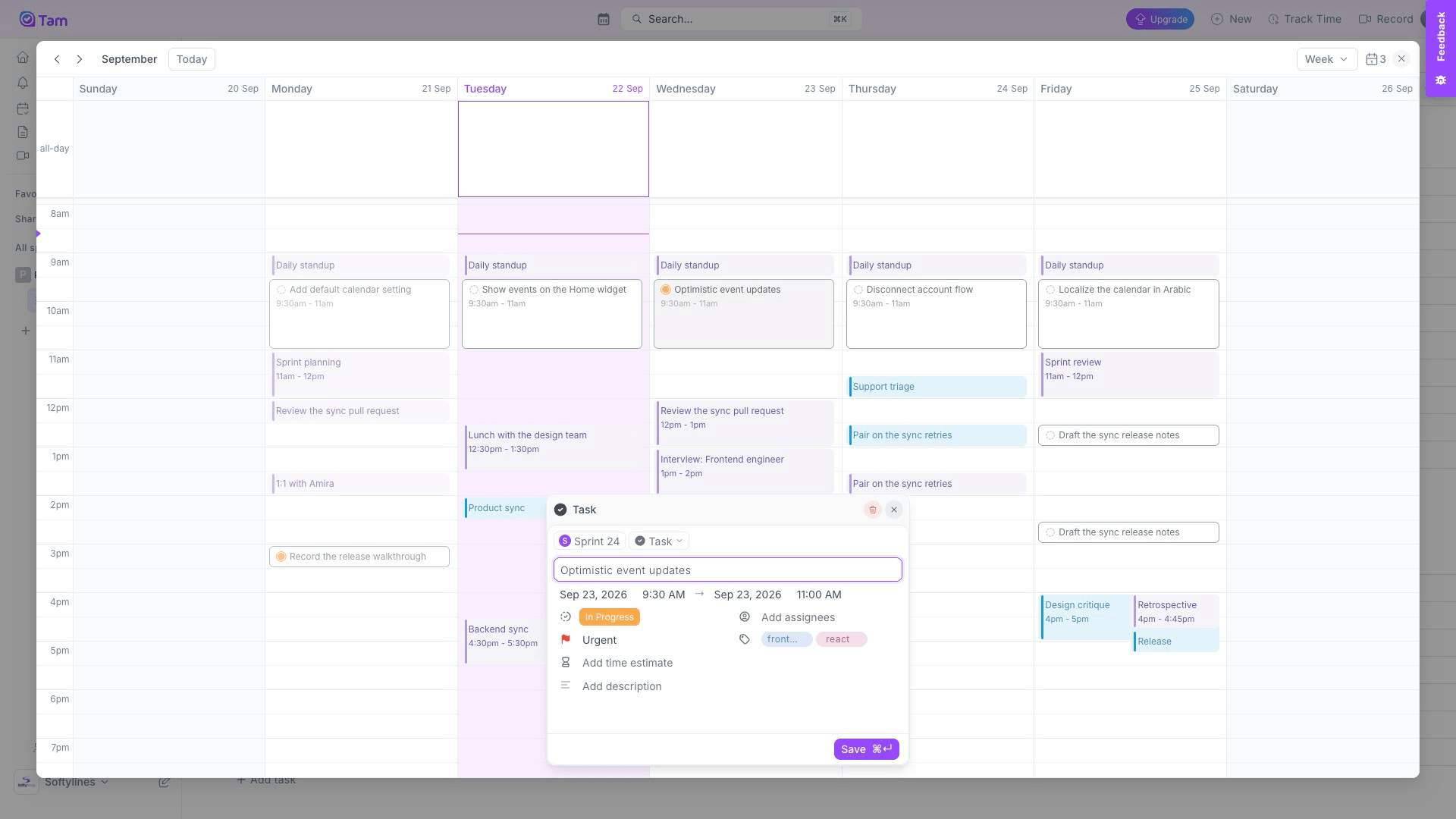
Task details. A task opened from the calendar: dates, status, priority, assignees, tags and estimate.
Calendars. Every connected account lists its calendars. Unchecking one hides its events right away.
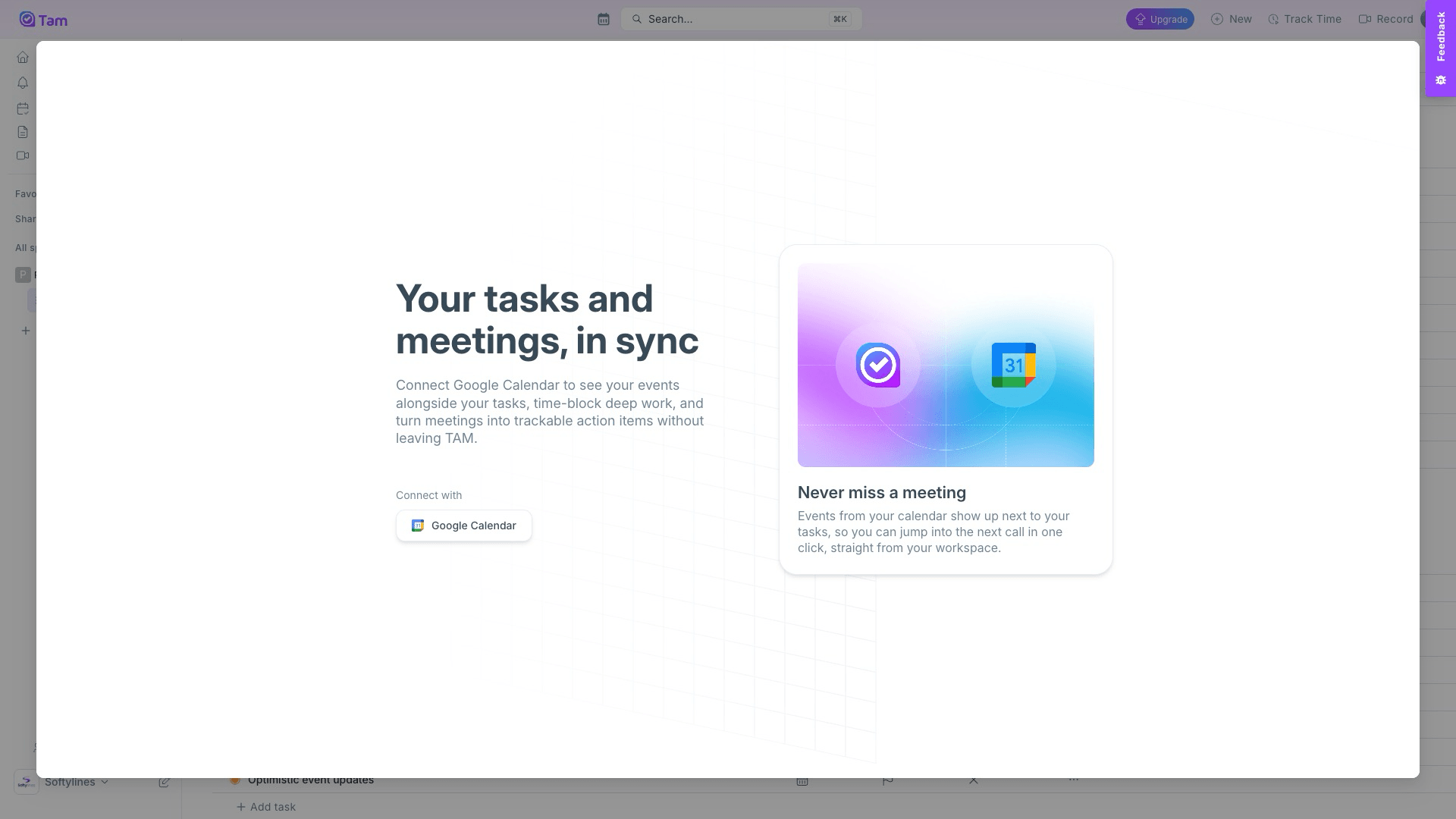
Connect. Until an account is linked, the calendar is a single invitation to connect one.
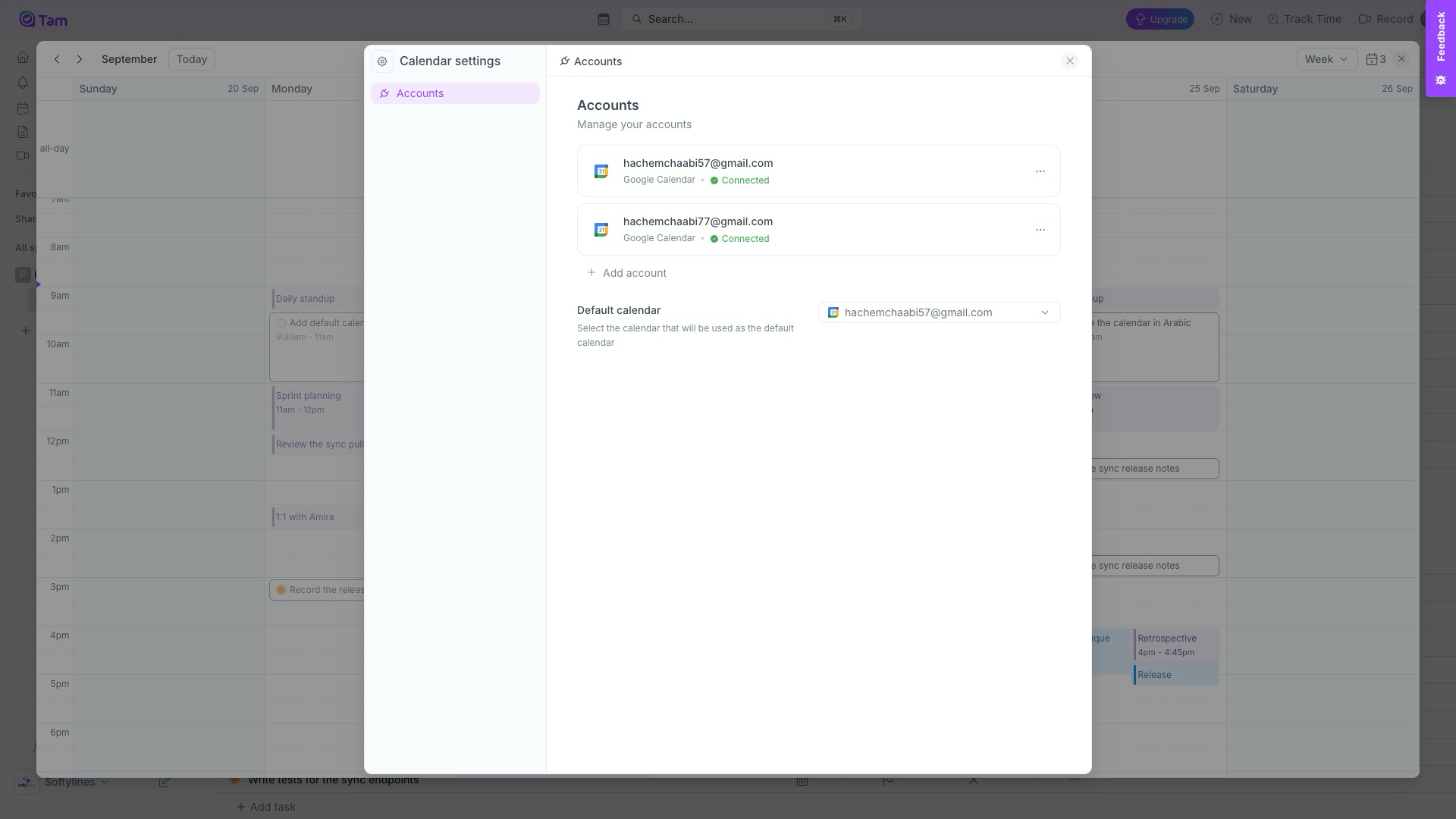
Settings. Settings list every connected account, and pick where new events go.
Also shipped
Beyond the timer and the calendar.
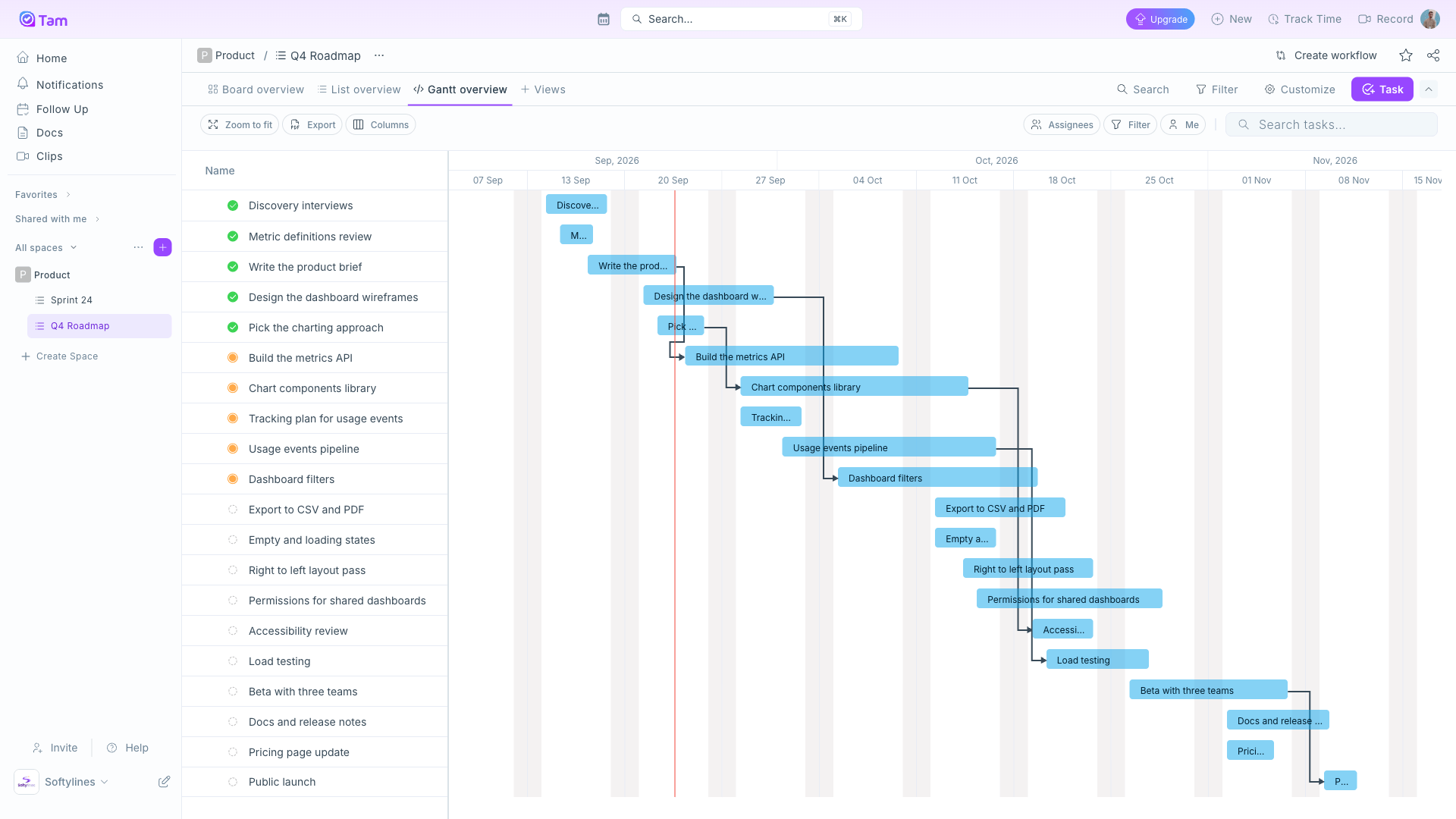
Gantt view
I added a Gantt view that updates in realtime, stays smooth on long timelines and exports any date range.
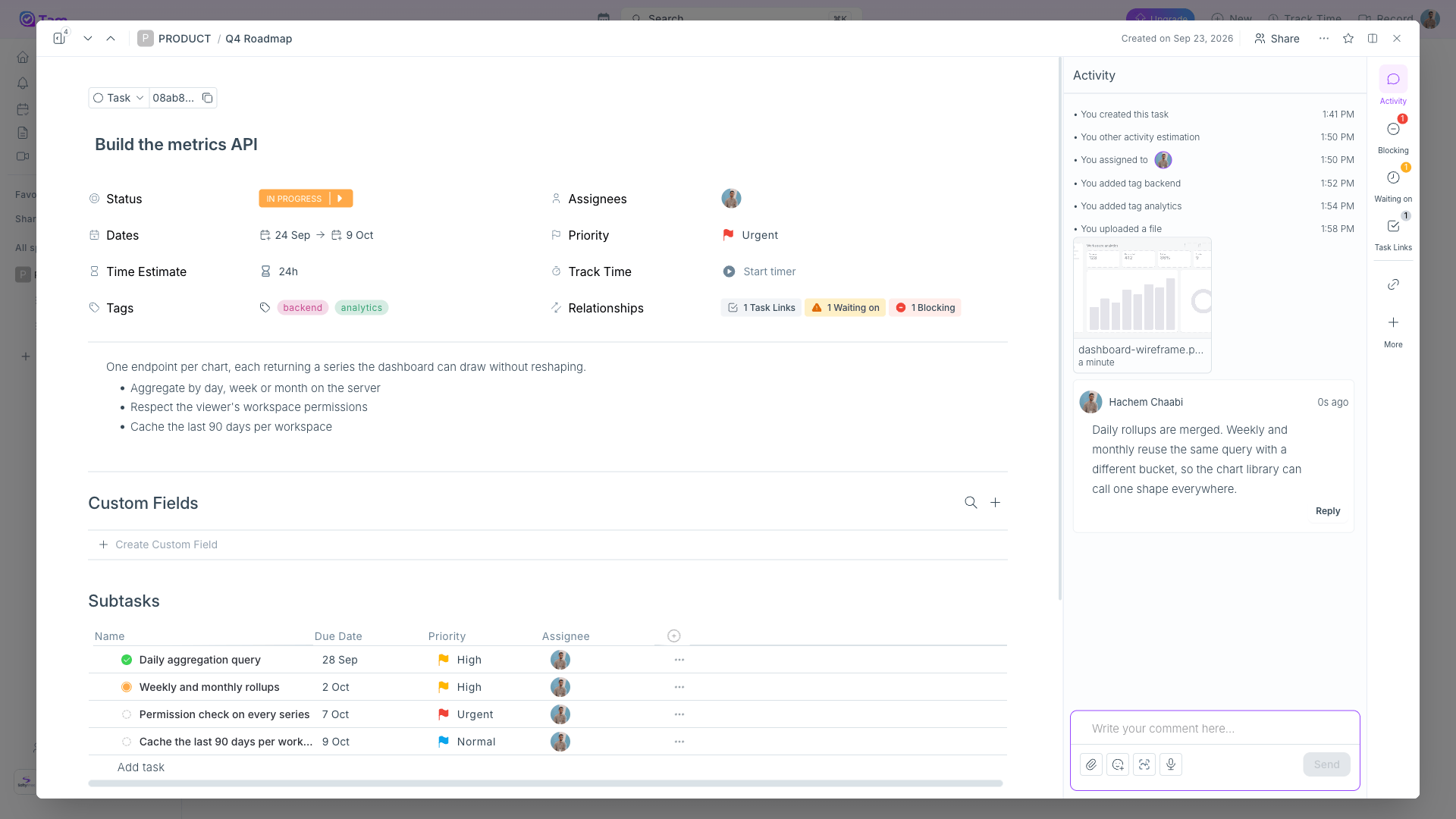
Task relations
A task can link to, wait on or block another, and I made each relation show on both tasks it connects, so a blocker is visible from either side.
Bulk edit bar
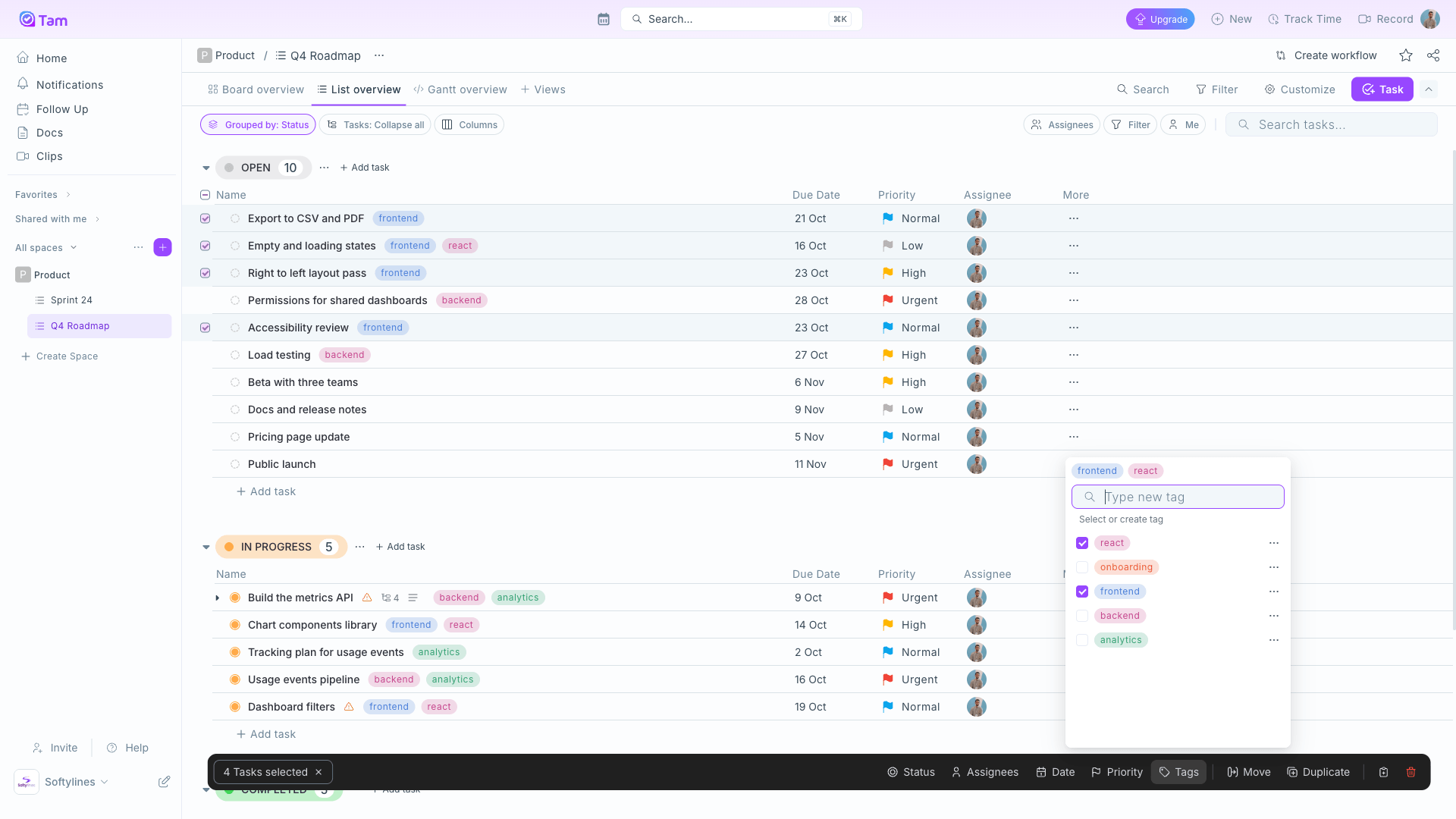
I added a bulk edit bar: select any number of tasks and change their status, assignees, dates, priority or tags at once.